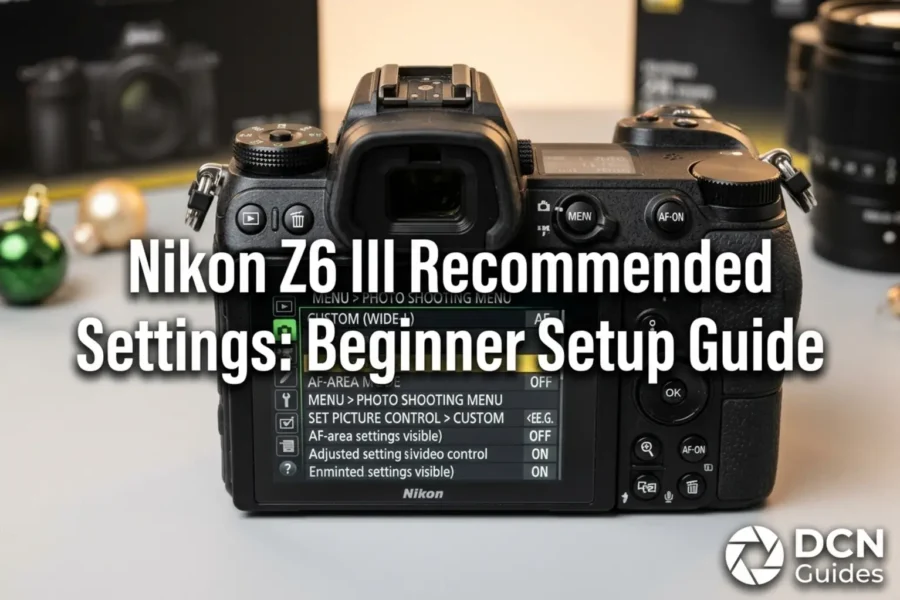
The Nikon Z6 III is a true high-speed hybrid powerhouse. Equipped with a partially-stacked 24.5MP CMOS sensor, 120fps high-speed JPEG capture, 20fps RAW burst shooting, and internal 6K N-RAW recording, it offers professional-grade imaging capabilities. However, factory default settings are rarely optimized for real-world shooting situations. Leaving your camera on generic out-of-the-box defaults can lead to missed focus on fast subjects, unnecessary battery drain, or awkward button layouts when working in the field.
This comprehensive setup guide walks beginners and hybrid creators step-by-step through configuring the ideal menu settings on the Nikon Z6 III for both photography and video production. We cover everything from initial file quality and autofocus tracking configurations to custom button layouts and video recording formats. To pair your newly configured body with optimal glass, check out our curated list of the best lenses for the Nikon Z6 III.
Quick Summary: Core Recommended Settings
Here is an instant cheat-sheet breakdown of our recommended initial settings for the Nikon Z6 III across stills and video modes:
| Camera Setting / Menu Item | Recommended Stills Setting | Recommended Video Setting |
|---|---|---|
| Image Quality / Format | RAW (High Efficiency*) or RAW + JPEG Fine | 4K UHD 60p (ProRes 422 HQ or H.265 10-bit) |
| AF Area Mode | Auto-Area AF or Wide-Area AF (L-People/Animal) | Continuous AF (AF-C) with Full-Time Subject Tracking |
| Focus Mode | AF-C (Continuous Servo) | AF-F (Full-time AF) or AF-C with Custom Speed |
| Subject Detection Option | Auto (or specific Person / Animal / Vehicle) | Auto (People / Pets / Vehicles) |
| Picture Control Mode | Auto, Neutral, or Flexible Color | N-Log (for color grading) or Standard (for quick turn) |
| Vibration Reduction (VR) | Sport VR (or Normal VR) | Normal VR + Electronic VR (if handheld) |
| ISO Sensitivity Settings | Auto ISO (Max 6400, Min Shutter 1/125s) | Manual ISO (or Auto ISO with Cap) |
| Custom Function (Fn1/Fn2) | Fn1: Subject Detection Toggle | Fn2: Focus Mode/Area | Fn1: Zebra Stripes | Fn2: Focus Peaking |
1. Initial Setup: File Format, Slots & Color Space
Before heading out to shoot, setting up your core recording parameters ensures maximum image quality and data safety. Turn your mode dial to P, S, A, or M (avoid Full Auto mode, as it grays out advanced menu controls) and configure these foundational settings in the Photo Shooting Menu:
- Image Quality: Set to RAW (Lossless Compressed or High Efficiency*). RAW files preserve the complete dynamic range of the partially-stacked sensor, giving you maximum latitude to recover highlights and shadows during editing.
- Primary Slot Selection / Secondary Slot Function: Because the Z6 III houses dual slots (CFexpress Type B + SDXC UHS-II), set the secondary slot to Backup for crucial shoots like weddings, or Overflow for casual travel.
- Color Space: Select sRGB if you share photos directly to social media or send JPEGs to clients without editing. Switch to Adobe RGB if you print fine art or edit in Lightroom.
To ensure your camera handles heavy 20fps RAW buffers without stalling, make sure your body is supported by fast storage media from our guide to the best accessories for the Nikon Z6 III.
Search Nikon Z6 III Camera Bodies & Kits
Check live availability, current bundle prices, and stock across authorized camera retailers:
Check Price on Amazon
Shop Nikon at B&H Photo
Beginner Tip: The Z6 III supports High Efficiency* RAW compression, which reduces RAW file sizes by roughly 50% with zero noticeable loss in dynamic range or sharpness!
2. Mastering the EXPEED 7 Autofocus System
The autofocus engine inside the Nikon Z6 III inherits algorithms directly from flagship Z8 and Z9 models. To maximize your hit rate when photographing people, wildlife, or fast-moving action, set up your focus menu as follows:
- Focus Mode: Set to AF-C (Continuous AF) for virtually all shooting scenarios. The EXPEED 7 engine is fast enough to track stationary subjects in AF-C without needing to switch back to AF-S.
- AF Area Mode: Use Auto-Area AF for general everyday shooting. For crowded environments, switch to Wide-Area AF (Custom or L-People) to restrict focus search to a specific box within the frame.
- Subject Detection Options: Keep this set to Auto for general shooting. If you shoot dedicated bird photography or motorsport events, switch explicitly to Animals or Vehicles for instantaneous lock-on.
- 3D Tracking: Assign 3D Tracking for unpredictable action. Once the reticle locks onto a subject, the camera tracks it seamlessly across the entire screen.
Keep track of all future firmware updates, custom profile downloads, and technical announcements by bookmarking our dedicated Nikon Z6 III news directory.
Search Fast CFexpress Cards for High-Speed AF Tracking
Clear 20fps tracking buffers effortlesly with high-speed memory media:
3. Recommended Video Settings for Beginners
The Z6 III is a world-class video tool capable of internal 6K N-RAW and 10-bit H.265 capture. For beginners wanting pristine video without steep learning curves, configure these settings in the Video Recording Menu:
- Frame Size & Rate: Select 3840×2160 (4K UHD) at 24p or 30p for natural cinematic narrative footage. Switch to 4K 60p for smooth movement or moderate slow-motion playback.
- Video File Type: Choose H.265 10-bit (SDR) for high-quality, lightweight files that look great right out of camera. If you plan to color grade, select N-Log.
- ISO Sensitivity (Video): Use manual ISO where possible, or set Auto ISO with a maximum ceiling of ISO 6400 to prevent shadow noise artifacts.
- Vibration Reduction: Set VR to Normal. If shooting handheld while walking, turn on Electronic VR for added gimbal-like smoothing (note: adds a minor 1.25x crop).
To explore how the Z6 III fits within the broader ecosystem of Nikkor optics, adapters, and bodies, read our complete Nikon Z system guide.
4. Customizing Buttons & The Quick ‘i’ Menu
One of the strongest features of the Nikon Z6 III is its customizable ergonomic control layout. You can assign frequently accessed settings to physical buttons, reducing the need to enter the main menu system while shooting:
- Fn1 Button (Front Lower): Assign to Subject Detection Toggle. This allows you to jump quickly between Auto, Person, Animal, and Vehicle detection without lowering the camera from your eye.
- Fn2 Button (Front Upper): Assign to AF-Area Mode + AF-Mode. Holding Fn2 while turning the front or rear command dial allows instant switching between Single-Point AF, 3D Tracking, and Auto-Area AF.
- Video Record Button (In Photo Mode): Assign to Live View Display Zoom. This lets you punch in 100% to manually verify focus sharpness on distant landscapes or portraits.
- Custom ‘i’ Menu: Customize the 12 slot ‘i’ quick menu to include Picture Control, White Balance, Focus Mode, AF Subject Detection, Silent Photography, and Electronic Front-Curtain Shutter.
If you are weighing alternative camera choices across the line, evaluate top picks inside our guide to the best Nikon mirrorless cameras.
5. Comparing Competitor Setup Workflows
When comparing menu simplicity and customizability against rival hybrid full-frame cameras, the Z6 III stands out for its clear visual organization and touch-friendly navigation. For a detailed comparison against Canon’s popular hybrid, check out our report on the Canon EOS R6 Mark III vs Nikon Z6 III comparison.
Similarly, for creators deciding between Sony and Nikon ergonomics, inspect our head-to-head analysis in the Sony A7 V vs Nikon Z6 III comparison.
6. Holiday Savings & Promotion Opportunities
Whether you are purchasing a new Z6 III body kit or adding Nikkor Z prime lenses to your kit, timing purchases around authorized manufacturer sales offers significant savings. To track seasonal discounts, browse our coverage of Nikon Black Friday deals.
Nikon USA Fall Rebates & Camera Deals
Looking to purchase a new Nikon Z6 III or expand your Nikkor lens collection with official instant savings? Check out current promotions:
Explore Nikon USA Fall Rebates
Savings Tip: Check authorized dealer rebate pages regularly for instant savings on Z6 III body bundles, FTZ II lens adapters, and Nikkor Z f/1.8 S-line primes!
Compare authorized retail pricing, stock status, and official warranty bundles across top stores:
Search Nikon Z6 III on Amazon | Shop Gear at B&H Photo | Browse Store Deals at Adorama
Frequently Asked Questions (FAQ)
Frequently Asked Questions About Nikon Z6 III Settings
Q: What is the best RAW setting for the Nikon Z6 III?
A: We recommend RAW High Efficiency*. It reduces RAW file sizes by roughly 50% compared to uncompressed RAW while maintaining professional dynamic range and shadow recovery.
Q: Should I use Electronic Front-Curtain Shutter (EFCS) on the Z6 III?
A: Yes! Using EFCS (Custom Setting d5) at shutter speeds below 1/2000s eliminates shutter shock vibrations for maximum landscape and macro sharpness.
Q: What is the best autofocus setting for general photography?
A: Set focus mode to AF-C (Continuous) and AF area mode to Auto-Area AF with Subject Detection set to Auto for intuitive point-and-shoot tracking.