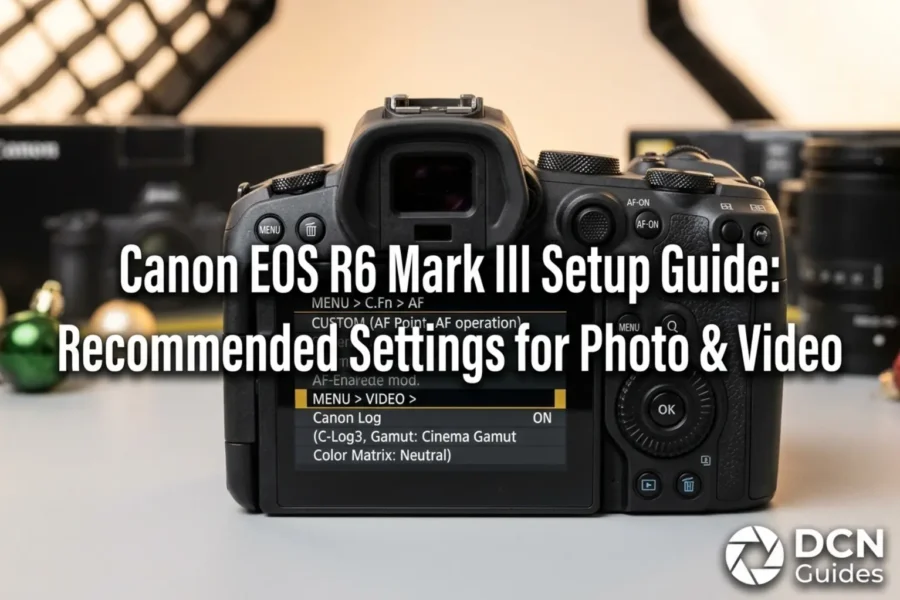
The Canon EOS R6 Mark III is built as an all-around hybrid powerhouse. Featuring a high-speed full-frame sensor, next-generation DIGIC processing, high-frame-rate continuous burst shooting, and uncropped 4K video with Canon Log 3 support, it caters to demanding photo and video projects. However, factory default settings are designed for general use rather than maximum performance. Leaving your camera on default settings can result in missed focus on moving subjects, unnecessary battery drain, or less intuitive button controls during fast-paced shoots.
This comprehensive setup guide walks hybrid creators and photographers step-by-step through configuring optimal menu settings on the Canon EOS R6 Mark III for both photography and video production. We cover everything from initial RAW file choices and Dual Pixel CMOS AF II setup to custom dial assignments and C-Log3 video formats. To pair your newly configured camera body with optimal glass, explore our curated list of the best lenses for the Canon EOS R6 Mark III.
Quick Summary: Core Recommended Settings
Here is an instant cheat-sheet breakdown of our recommended initial settings for the Canon EOS R6 Mark III across stills and video modes:
| Camera Setting / Menu Item | Recommended Stills Setting | Recommended Video Setting |
|---|---|---|
| Image Quality / Format | RAW (C-RAW for space efficiency) or RAW + JPEG | 4K Fine 24p/30p (10-bit 4:2:2 C-Log3) |
| AF Operation | Servo AF (Continuous AF) | Movie Servo AF with Custom AF Speed |
| AF Area Selection | Whole Area AF or Expand AF Area (Around) | Whole Area AF with Subject Tracking |
| Subject Detection | People / Animals / Vehicles (Auto Mode) | People or Animals (depending on scene) |
| Picture Style / Color Profile | Neutral or Standard (for JPEGs) | Canon Log 3 (C-Log3) or Neutral |
| Image Stabilization (IS) | Enable IBIS + Optical Lens IS | Enable IBIS + Digital IS (Low/Standard) |
| ISO Speed Settings | Auto ISO (Max 12800, Min Shutter 1/250s) | Manual ISO (Base ISO 800/3200 in C-Log3) |
| Custom Dial / Button Setup | M-Fn: Drive/AF Mode | Ring: Aperture/ISO | M-Fn: Peaking/Zebra | Direct AF Point Selection |
1. Initial Setup: File Format, Dual Card Slots & Color Space
Before heading out on your first assignment, configuring your core shooting parameters ensures maximum image fidelity and data redundancy. Switch your mode dial to P, Tv, Av, or M to unlock access to all advanced menu sub-tabs in the Shooting Menu (Red):
- Image Quality: Set to RAW or C-RAW (Compact RAW). Canon’s C-RAW format maintains the full dynamic range and color latitude of standard RAW while reducing file sizes by approximately 30-40%, allowing you to store more exposures per card.
- Record Function + Card/Folder Select: The EOS R6 Mark III features dual card slots. Set your secondary slot to Rec to Multiple (Backup) for weddings and commercial jobs, or Auto Switch Card (Overflow) for personal travel.
- Color Space: Select sRGB if you share photos directly to web platforms or deliver JPEGs to clients without post-processing. Choose Adobe RGB for fine-art printing or detailed editing in Lightroom and Photoshop.
To ensure your camera handles high-speed continuous RAW buffers and high-bitrate 4K video without stopping, equip your body with fast media from our guide to the best Canon EOS R6 Mark III memory cards.
Search Canon EOS R6 Mark III Bodies & Bundles
Check live stock availability, promotional pricing, and kit offers across authorized camera retailers:
Check Price on Amazon
Shop Canon at B&H Photo
Setting Tip: Enable Release Shutter Without Card -> OFF! This prevents you from accidentally taking photos when no memory card is inserted.
2. Mastering Dual Pixel CMOS AF II & Subject Tracking
Canon’s Dual Pixel CMOS AF II system provides deep-learning AI tracking across virtually 100% of the image sensor. Configuring your autofocus menus in the AF Menu (Magenta) ensures high sharpness when photographing unpredictable movement:
- AF Operation: Keep set to Servo AF for dynamic subjects. The camera continuously calculates subject distance, making it ideal for portraits, sports, and wildlife.
- AF Area: Set to Whole Area AF to utilize the full sensor area for subject detection. Use Expand AF Area (Around) in crowded scenes where you want to isolate a single subject.
- Subject to Detect: Set to People for weddings and street shooting, or Animals / Vehicles for sports and nature. Leaving it on Auto allows the camera to detect subjects intelligently.
- Eye Detection: Enable Eye Detection -> Enable. This prioritizes sharp focus directly on human or animal eyes, even if the subject turns away briefly.
Stay up to date with new firmware updates, setup tips, and accessory releases by bookmarking our dedicated Canon EOS R6 Mark III news directory.
Search High-Speed SDXC UHS-II Cards for Dual Pixel AF
Clear fast continuous tracking buffers with high-speed memory media:
3. Recommended Video Settings: 4K Fine & C-Log3 Workflow
The EOS R6 Mark III is an exceptional video camera capable of producing oversampled 4K footage with wide dynamic range. For high-quality video results, configure these options in the Movie Menu:
- Movie Rec Quality: Select 4K Fine at 24p or 30p for oversampled 4K video with maximum detail. For motion work, select 4K 60p for smooth action or 2.5x slow-motion playback.
- Canon Log Settings: Turn Canon Log 3 (C-Log3) -> ON with 10-bit 4:2:2 recording. This expands dynamic range up to 14+ stops, protecting highlight detail and offering flexibility in DaVinci Resolve or Premiere Pro.
- Base ISO for C-Log3: Use **ISO 800** (or ISO 3200 as secondary base ISO) for clean shadow noise performance when shooting in C-Log3.
- Movie Servo AF: Keep set to Enable, and adjust AF Speed to **-1 or -2** for natural focus pulls between subjects.
To explore how the R6 Mark III fits within the broader ecosystem of RF glass and bodies, read our foundational Canon EOS R system guide.
4. Customizing Buttons, Dials & Quick Control Menu
Customizing the physical controls on the EOS R6 Mark III lets you adjust key settings without taking your eye off the viewfinder:
- M-Fn Button (Top): Assign to Drive Mode / AF Operation for quick access to burst settings and focus modes.
- AF-ON Button: Assign to Metering and AF Start for back-button focusing setups.
- Control Ring (RF Lenses): Assign to Aperture or ISO Speed for immediate exposure adjustments.
- Multi-Controller (Joystick): Set to Direct AF Point Selection so you can nudge the focus point instantly across the frame.
- Quick Control (Q) Menu: Customize the ‘Q’ menu to include Movie Rec Quality, White Balance, Picture Style, Servo AF Characteristics, and Card Selection.
If you are exploring other full-frame bodies across Canon’s mirrorless lineup, evaluate top choices inside our guide to the best Canon mirrorless cameras.
5. Head-to-Head Setup & Ergonomic Comparisons
Comparing menu usability and ergonomics against key mirrorless competitors shows where the EOS R6 Mark III excels in speed and layout. For a detailed comparison against Nikon’s rival hybrid, check out our report on the Canon EOS R6 Mark III vs Nikon Z6 III comparison.
Creators choosing between compact full-frame bodies within Canon’s line can review key differences in our Canon EOS R6 Mark III vs EOS R8 comparison.
For a detailed breakdown against Sony’s competing full-frame setup, inspect our comprehensive Sony A7 V vs Canon EOS R6 Mark III comparison.
Canon Black Friday Deals & Camera Discounts
Looking to purchase a new Canon EOS R6 Mark III or upgrade your setup with RF optics and speedlights? Check out the latest promotional pricing:
Explore Canon Black Friday Deals
Savings Tip: Check authorized dealer promotion pages regularly for instant savings on EOS R bodies, RF lens bundles, and official accessories!
Compare authorized retail pricing, stock status, and official warranty bundles across top stores:
Search Canon EOS R6 Mark III on Amazon | Shop Gear at B&H Photo | Browse Store Deals at Adorama
Frequently Asked Questions (FAQ)
Frequently Asked Questions About Canon EOS R6 Mark III Settings
Q: What is the best RAW file format setting for the Canon EOS R6 Mark III?
A: We recommend C-RAW (Compact RAW). It reduces file sizes by approximately 30–40% compared to standard uncompressed RAW while preserving complete dynamic range and editing flexibility.
Q: What is the base ISO when shooting C-Log3 video on the EOS R6 Mark III?
A: The primary base ISO for C-Log3 is ISO 800, which provides maximum dynamic range and the cleanest shadow performance in high-contrast scenes.
Q: How do I enable Eye AF for people and pets on the EOS R6 Mark III?
A: Set AF Operation to Servo AF, select Whole Area AF, set Subject to Detect to People or Animals, and turn Eye Detection -> Enable.