The camera system on the iPhone 18 Pro Max stands as a technological tour de force. Featuring an advanced triple-lens array with 48MP fusion sensors, Sensor-Shift Optical Image Stabilization, high-speed USB-C transfer speeds, and professional video recording codecs like Apple Log and ProRes, it delivers studio-grade visual quality. However, default out-of-the-box settings are tuned for casual snapshots and storage savings rather than maximum image resolution and dynamic range. Leaving your device on automatic defaults can lead to aggressive image sharpening, compressed HEIC file artifacts, or clipped highlights in high-contrast video scenes.
This comprehensive setup guide walks mobile photographers and video creators step-by-step through configuring the recommended camera settings on the iPhone 18 Pro Max for both still photography and video capture. We cover everything from enabling 48MP ProRAW Max capture and grid overlays to setting up Apple Log video encoding, external USB-C recording pathways, and specialized shutter speed rules. To complement your software configurations with top-tier MagSafe SSDs, microphone rigs, and cases, review our detailed guide to the best accessories for the iPhone 18 Pro Max.
Quick Summary: Core Recommended Camera Settings
Here is an instant cheat-sheet breakdown of our recommended initial settings for the iPhone 18 Pro Max across stills and video shooting modes:
| Setting Category / Feature | Recommended Stills Setting | Recommended Video Setting |
|---|---|---|
| Photo / Video Format | ProRAW MAX (48MP Uncompressed / DNG) | 4K at 24 fps or 60 fps (Apple ProRes / Log) |
| Default Lens & Focal Length | Main (24mm / 28mm / 35mm Default Toggle) | Main 24mm or 5x Telephoto (Optical Zoom lock) |
| Color Profile / Encoding | Photographic Styles (Standard or Neutral) | Apple Log (10-bit color for grading) |
| Video Stabilization Mode | Sensor-Shift OIS (Standard) | Enhanced Stabilization / Action Mode (for fast moves) |
| Composition Overlays | Grid (3×3) + Level (Horizontal Indicator) | Grid (3×3) + Safe Area Margins |
| Preserve Settings Toggles | Camera Mode, Exposure Adjustment & ProRAW ON | Video Mode, Apple Log & Frame Rate ON |
| Focus & Exposure Controls | Focus Focus Peaking & AE Lock on Long Press | Manual Focus Lock / Blackmagic Camera App Overlays |
| External Storage Target | Internal Flash Storage | Direct USB-C MagSafe SSD (for 4K ProRes 60fps) |
1. Still Photography Setup: 48MP ProRAW & Lens Customization
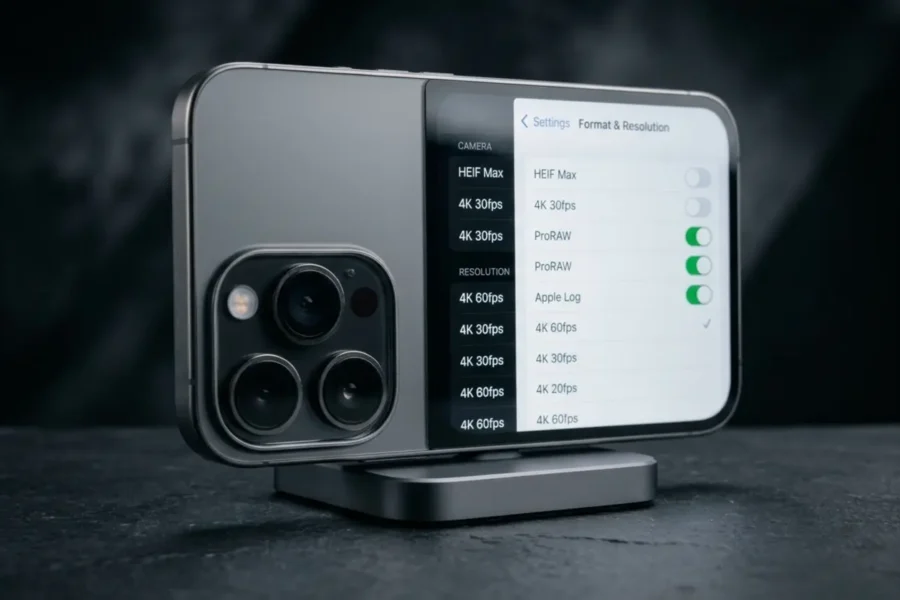
To capture maximum detail and dynamic range when taking photographs, open the main iOS Settings app, navigate to Camera, and select the Formats sub-menu. Configure your primary photography controls as follows:
- Photo Mode: Set to 24MP Standard for high-quality everyday snapshots. For critical landscape, commercial, and portrait work, toggle ProRAW & Resolution Control -> ON and set Default Format to ProRAW Max (48MP). This records uncompressed DNG raw files that preserve total sensor detail for post-processing in software like Lightroom or Luminar.
- Main Camera Focal Lengths: Under the Camera settings, select Main Camera and enable 28mm and 35mm focal length shortcuts. This allows you to tap the “1x” icon in the camera app to quickly cycle between traditional focal lengths.
- Prioritize Faster Shooting vs. Quality: Keep Prioritize Faster Shooting -> OFF if ultimate image quality is your goal. Leaving it off ensures the image signal processor executes full multi-frame exposure processing on every shot.
- Composition Overlays: Turn on both Grid and Level inside the Camera menu. The built-in electronic horizon level ensures your landscape and architectural shots remain perfectly straight.
For smooth handheld tracking shots, motion timelapses, and automated AI subject-following, explore our top recommendations in our guide to the best gimbals for the iPhone 18 Pro Max.
Search iPhone 18 Pro Max Cases & MagSafe Storage
Check live stock availability, pricing, and magnetic accessories across top retailers:
Check Price on Amazon
Shop Gear at B&H Photo
Storage Tip: 48MP ProRAW files average between 75MB and 100MB per photograph! Use ProRAW for important compositions and switch back to 24MP HEIF for casual everyday snapshots to manage internal storage capacity.
2. Video Setup: 4K ProRes, Apple Log & Frame Rate Selection
The iPhone 18 Pro Max features cinematic video tools that rival dedicated cinema cameras. Setting up your video recording parameters in the Record Video menu tab unlocks maximum dynamic range and motion smoothness:
- Record Video Resolution: Set to 4K at 24 fps for a classic cinematic narrative feel, or 4K at 60 fps for high-speed action and smooth motion playback. Select 4K at 120 fps when shooting dedicated high-speed slow-motion sequences.
- ProRes & Apple Log Encoding: Enable Apple ProRes -> ON and set Color Encoding to Log. Apple Log preserves over 13 stops of dynamic range, protecting highlight clouds and deep shadows while offering a flat color profile ideal for color grading with 3D LUTs.
- Lock Camera Lenses: Enable Lock Camera -> ON when recording video clips. This prevents the system from automatically switching between physical lenses if a subject moves close to the lens, avoiding mid-take optical jumps.
- Auto FPS: Set Auto FPS -> OFF for professional production. Leaving Auto FPS enabled can alter frame rates automatically in low light, creating inconsistent motion blur between takes.
For more news, hardware updates, and software coverage across Apple devices, explore our dedicated Apple iPhone category hub.
Search MagSafe Portable SSDs for 4K ProRes Video
Record uncompressed 4K ProRes 60fps video straight to high-speed USB-C storage:
3. Using the Preserve Settings Menu for Workflow Efficiency
By default, iOS resets camera settings back to standard auto mode whenever you close the Camera app. Navigating to Camera -> Preserve Settings allows you to lock in your preferred settings so your custom configurations remain active every time you launch the camera:
- Camera Mode: Enable to retain your last used mode (such as Video, Portrait, or Pano) instead of resetting to Photo mode.
- Creative Controls: Enable to preserve custom Aspect Ratios, Lighting profiles, and Filter selections.
- Exposure Adjustment: Enable to keep your manual exposure compensation dial lock active across app launches.
- Apple ProRAW & ProRes Toggles: Enable both switches so your 48MP ProRAW and Apple Log toggles stay readily available on screen.
To inspect specific device specs and hardware details, visit our dedicated tag tracking the iPhone 18 Pro Max tag hub.
4. Advanced Controls: Focus Lock & Exposure Fine-Tuning
While the native Camera app handles automatic shooting well, fine-tuning focus and exposure manually prevents focus hunting and blown-out highlights during video takes:
- AE/AF Lock: Tap and hold any point on the display until the yellow AE/AF LOCK banner appears. This locks focus distance and exposure, allowing you to reframe shots without light shifting.
- Manual Exposure Bias: Swipe up on the camera screen or tap the small chevron icon to expose the slider controls. Adjust the Exposure Value (EV) slider to **-0.3 or -0.7** to prevent bright highlights from clipping.
- Third-Party Pro Apps: For advanced cinema controls (including shutter angle, false color, focus peaking, and waveform monitoring), download professional apps like **Blackmagic Camera** or **Filmic Pro**.
To follow broader industry developments across mobile optics and camera hardware, explore our master smartphone news directory.
5. Ecosystem Context & Announcement Details
Understanding how the flagship camera architecture compares to previous generations helps guide your setup choices and accessory investments. For complete context on the device’s launch specs and official features, read our recap of the Apple September event announcements for the iPhone 18 Pro series.
To inspect motor payloads, battery specifications, and tracking features across top motor stabilizers, explore our comprehensive reviews in our 3-axis gimbal directory.
Skylum Luminar Black Friday Deals
Looking to grade and enhance your mobile RAW captures and video frame grabs with professional AI editing tools? Check out current holiday promotions:
Explore Skylum Luminar Black Friday Deals
Software Savings Alert: Check our holiday deal pages regularly for deep discounts on Skylum Luminar Neo, cloud editing plans, and custom color grading LUT packs!
Compare authorized retail pricing, stock status, and official warranty bundles across top camera stores:
Search Camera Gear on Amazon | Shop Gear at B&H Photo | Browse Store Deals at Adorama
Frequently Asked Questions (FAQ)
Frequently Asked Questions About iPhone 18 Pro Max Camera Settings
Q: What is the best RAW file format setting for the iPhone 18 Pro Max?
A: We recommend ProRAW Max (48MP). It captures uncompressed 48-megapixel DNG raw files that preserve maximum shadow and highlight detail for post-processing.
Q: Why should I shoot video in Apple Log on the iPhone 18 Pro Max?
A: Apple Log records a flat 10-bit video profile that preserves up to 13+ stops of dynamic range, allowing you to apply custom 3D LUTs and color grade clips in DaVinci Resolve or Premiere Pro.
Q: How do I prevent the camera app from resetting my settings when I close it?
A: Go to Settings -> Camera -> Preserve Settings and turn ON toggles for Camera Mode, Creative Controls, Exposure Adjustment, and ProRAW & ProRes.

See More DCN on Google
Add Daily Camera News as a trusted source to see our latest camera reviews, deal alerts, and photography news first in Google Search.
Explore Recommended Gear
Looking for the best cameras, lenses, and accessories? Check out our curated, hand-picked gear lists on Amazon.