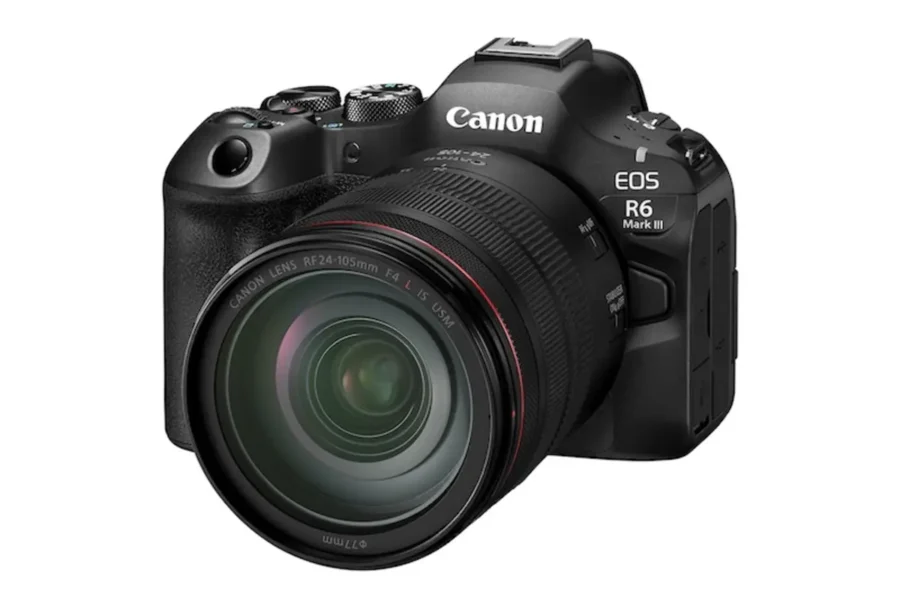
For professional photographers and hybrid content creators relying on the Canon EOS R6 Mark III in demanding environments, ensuring that image data is written safely and completely to memory media is paramount. Canon has formally released Firmware Version 1.1.2, an important stability patch designed to fix an issue that could prevent image recording to memory cards from completing properly.
While minor maintenance updates may not introduce new menu features or altered autofocus algorithms, resolving media writing anomalies is crucial to preventing dropped files or card write hangs during high-speed burst shooting or long recording sessions. Below is our full breakdown of this official update, direct links to Canon’s official support portal, and a complete step-by-step installation guide. For broader system insights, check out our guide to the best memory cards for Canon EOS R6 Mark III, browse our curated list of the best lenses for Canon EOS R6 Mark III in 2026, explore continuous updates on our Canon news hub, or review how the R6 line fits into our overall guide to the best Canon mirrorless cameras.
Quick Summary: Firmware Version 1.1.2 Change Log
Here is an overview of the official release details and core fix provided in Firmware Version 1.1.2:
| Firmware Detail | Official Canon Release Information |
|---|---|
| Target Camera Model | Canon EOS R6 Mark III Full-Frame Mirrorless Camera |
| Firmware Version | Version 1.1.2 |
| Primary Fix | Fixes an issue where image recording to the card may not complete. |
| Official Download Portal | Canon Official Product Support Page |
| Priority Level | High (Recommended for all active shooters) |
1. Why Installing Firmware Update 1.1.2 Is Essential
In high-speed action, wedding, and event photography, card write reliability is the foundation of a professional workflow. When buffer data transfers from the camera’s internal memory buffer to dual SDXC UHS-II or CFexpress Type B cards, any interruption in the writing cycle can leave the camera busy or prevent files from closing correctly.
Firmware Version 1.1.2 specifically targets and corrects an edge-case bug where card recording processes could stall or fail to complete. By deploying this update, Canon ensures seamless file finalizing and card writing performance, eliminating write-time delays whether you are shooting continuous high-speed RAW bursts or recording long video clips.
Search Recommended High-Speed Memory Cards for EOS R6 Mark III
Pair your updated firmware with fast, verified V90 SDXC and CFexpress Type B cards:
Check High-Speed Cards on Amazon
Shop Memory at B&H Photo
Installation Safety Tip: Always verify that your battery displays a 100% full charge level or use a dedicated AC power adapter before initiating a firmware update to prevent accidental power cuts during installation!
2. Official Download Links & Pre-Update Verification
Canon recommends that all owners of the EOS R6 Mark III update their bodies to Firmware 1.1.2 to maintain optimal system stability. You can access the official release files, installation instructions, and software tools directly from Canon’s regional support center:
- Official Download Link: Canon Product Support Page (EOS R6 Mark III Firmware)
Before proceeding with the update, check your current camera firmware version by pressing MENU, navigating to the Setup (Yellow Wrench) Tab, and scrolling down to Firmware Ver. If your camera already displays Ver. 1.1.2, no further action is needed.
Search Canon LP-E6P Batteries & Power Accessories
Keep your EOS R6 Mark III supplied with high-output power cells for uninterrupted shoots:
3. Step-by-Step Firmware Update Guide
Updating your Canon EOS R6 Mark III to Firmware Version 1.1.2 takes less than five minutes. Follow these official installation steps:
- Download the Firmware Package: Visit the official Canon support download link and save the Firmware 1.1.2 archive file to your computer.
- Extract & Copy the Firmware File: Unzip the downloaded folder to locate the firmware file (e.g.,
R63_1120.FIR). Insert a formatted memory card into your computer card reader and copy the.FIRfile directly into the root directory of the memory card. - Insert Media & Battery: Place the memory card containing the firmware file into Slot 1 of your camera. Ensure the LP-E6P battery is fully charged (100%).
- Navigate to Firmware Setup: Turn the power switch ON. Press the
MENUbutton, select the Setup (Yellow Wrench) Tab, and choose Firmware Ver. - Initiate Upgrade: Press
SET, select OK when prompted to perform the firmware update, and allow the progress bar to complete. Do not touch buttons, open card doors, or switch off camera power while updating! - Finalize & Restart: Once the screen displays “Update Complete,” press
OK, turn the camera OFF and back ON, and verify in the menu that the version reads Ver. 1.1.2.
Compare authorized pricing, bundle options, and stock availability across top camera retailers:
Search Canon R6 Mark III on Amazon | Shop Canon Bodies at B&H Photo | Browse Gear at Adorama
Frequently Asked Questions (FAQ)
Frequently Asked Questions About Firmware Version 1.1.2
Q: What specific issue does Firmware 1.1.2 resolve?
A: Firmware Version 1.1.2 fixes a specific operational issue where image recording to the memory card may not complete properly.
Q: Is Firmware Update 1.1.2 cumulative?
A: Yes, Firmware Version 1.1.2 includes all previous maintenance patches and performance updates issued for the EOS R6 Mark III.
Q: Can I update the firmware wirelessly via the Canon Camera Connect app?
A: Yes, you can push firmware updates wirelessly to the camera using the paired Canon Camera Connect application on iOS or Android, or manually via an SD card.