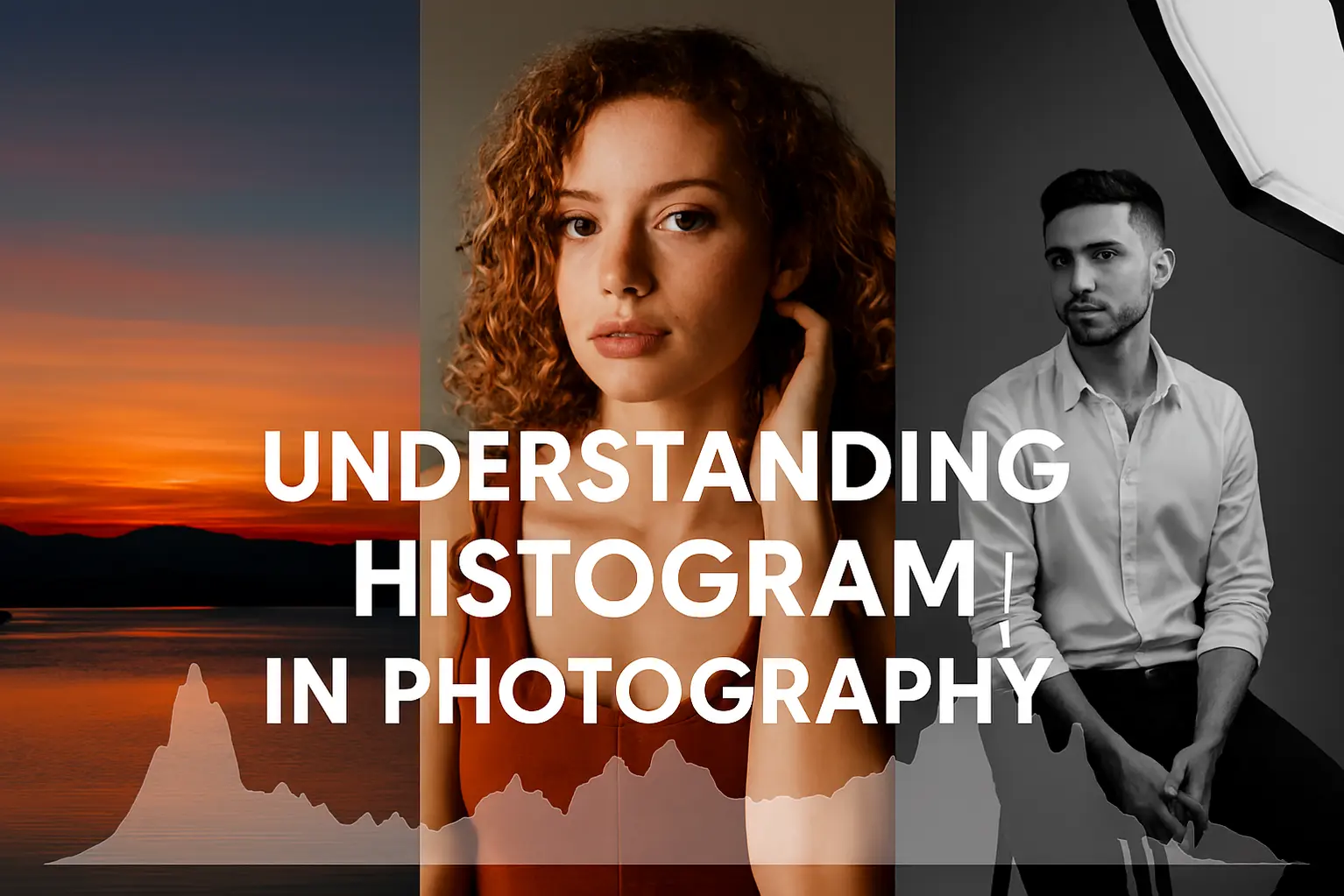
The histogram is one of the most powerful tools in digital photography, yet most beginners ignore it. This simple graph shows the distribution of tones in your image—from shadows on the left, midtones in the middle, to highlights on the right. Understanding histograms means you can spot underexposure, avoid blown highlights, and achieve balanced contrast. Daisy walks you through how to read histograms, how to apply them in real-world shooting, and how to use them as part of your workflow. By the end, you’ll know exactly when to trust your eyes and when to trust the graph.
Let’s be honest: looking at your camera’s LCD screen on a bright sunny day is about as reliable as a chocolate teapot. The glare makes everything look dark, so you crank up the exposure, only to get home and realize you’ve blown out the sky into a featureless white blob. If I were shooting in unpredictable light, I wouldn’t trust my eyes—I would trust the histogram. It is the only truly objective way to see exactly how much light your sensor is capturing, and once you learn to read it, you’ll never have to “guess” your exposure again.
The Anatomy of the Histogram: Reading the Mountain Range
To master the histogram, you first need to understand what you’re actually looking at. Imagine the horizontal axis (the bottom line) as a scale of light. On the far left, you have 0% brightness, which is pure black. On the far right, you have 100% brightness, or pure white. Everything in between represents the shadows, midtones, and highlights. The vertical axis represents the quantity of pixels. A high peak means a lot of pixels are at that specific brightness level; a flat line means there are very few.
Most beginners make this mistake: they think a “good” histogram has to look like a perfect bell curve in the middle. That’s a myth! A photo of a black cat on a dark rug should have a histogram heavily weighted to the left. A photo of a white swan on a snowbank should be weighted to the right. The shape of the graph is entirely dependent on the scene you are shooting. If you are ready to see this graph in higher resolution, many mirrorless cameras with large, high-resolution LCDs from B&H Photo make it much easier to analyze your data in the field.
The real power of the histogram lies in identifying clipping. If the graph is cut off abruptly on either the left or right edge, you have lost data. Highlights that “hit the wall” on the right will be pure white with no detail (blown out), and shadows that hit the left will be pure black (crushed). No amount of editing in Lightroom can bring back detail that wasn’t captured by the sensor in the first place.
The Five Zones of Light
To make the histogram easier to use, we can divide it into five distinct sections. Understanding these helps you visualize where the textures in your image live. If you’re looking for a body that handles these transitions with more dynamic range, check out the latest full frame mirrorless cameras on Amazon, which are designed to keep the “mountain” from hitting the edges in tough lighting.
- Blacks (Far Left): The darkest parts of the image. If the graph touches this edge, you have “crushed” shadows.
- Shadows (Inner Left): Dark areas that still contain texture, like the bark of a tree in the shade.
- Midtones (The Center): The “meat” of the image. This is where skin tones and most colors live.
- Highlights (Inner Right): Bright areas with detail, such as clouds or the bright side of a face.
- Whites (Far Right): The brightest points. If the graph hits this edge, you have “blown” highlights.
Identifying the “Correct” Histogram for Different Scenes
| Scene Type | Histogram Shape | Goal |
|---|---|---|
| Low-Key (Dark/Moody) | Shifted to the Left | Keep blacks deep but avoid “hitting the wall” on the far left. |
| High-Key (Bright/Airy) | Shifted to the Right | Keep whites bright but avoid “hitting the wall” on the far right. |
| High Contrast (Sunny Day) | “U” Shape (High on both ends) | Balance exposure to save the most important detail (usually highlights). |
| Low Contrast (Foggy Day) | Narrow Peak in the Middle | Ensure the “mountain” isn’t too narrow, or the image will look flat. |
After checking your table and realizing your lens might be causing too much flare in high-contrast scenes, you might consider browsing high-quality lens hoods at B&H Photo to help keep your histogram “cleaner” by reducing stray light.
Advanced Technique: ETTR (Exposing to the Right)
Here’s what I’d actually do if I wanted the cleanest, lowest-noise images possible: Expose to the Right (ETTR). Because of how digital sensors work, they capture the most information in the highlight areas. By intentionally overexposing your image just enough so that the histogram “mountain” is as far to the right as possible without touching the edge, you maximize the signal-to-noise ratio.
In post-processing, you then darken the image back to the desired level. The result is a photo with significantly less noise in the shadows compared to an image that was “perfectly” exposed in-camera. However, this is a dangerous game! If you push too far and the graph touches the right edge, those highlights are gone forever. If you’re practicing ETTR, using pro-level SD cards from Amazon ensures that your camera can write those large, data-heavy RAW files without bottlenecking during a burst.
Real-World Scenario: The Snowy Landscape Challenge
Imagine you are standing in a field of fresh snow. If you use your camera’s “Auto” mode, it will see all that white and try to turn it into a dull, muddy gray. Your histogram will show a large peak right in the middle.
To get “white” snow, you need to increase your exposure until that peak moves into the Highlights section on the right. But be careful! If you move it too far and the peak hits the right wall, the snow becomes a textureless white void. The histogram allows you to find that perfect “sweet spot” where the snow is bright and white, but you can still see the delicate sparkles and drifts in the powder. For landscapes like this, having a circular polarizer filter from B&H Photo can help manage those bright reflections and keep your histogram under control.
Common Mistakes with Histograms
- Thinking there is a “perfect” shape: Every scene is different. A silhouette shot should have a histogram that crashes into the left wall.
- Using the JPEG histogram for RAW files: Most cameras show a histogram based on a processed JPEG, even if you shoot RAW. This means you usually have a little more “room” on the edges than the graph suggests.
- Ignoring the RGB Histogram: Sometimes the overall brightness (Luminance) looks fine, but one specific color (like a bright red flower) is “clipping.” Switch to the RGB histogram view to ensure individual colors aren’t losing detail.
- Correcting exposure based on screen brightness: Never trust how bright the screen looks; it changes based on your surroundings. Trust the graph.
Mastering the histogram is just one part of the exposure puzzle. To see how this works with your camera’s brain, read our guide on Metering Modes Explained. If you’re still confused about the basics of light, head over to Photography 101: The Exposure Triangle for a solid foundation. For those looking to see how high-end sensors handle these graphs, check out our latest Camera Reviews and Lab Tests to see dynamic range comparisons in action.
The Principle, Practice, and Progress of Exposure
The principle of the histogram is rooted in data, not emotion. It is a visual representation of your sensor’s capacity to see. By understanding the science of the “mountain,” you move from being a passenger in your camera’s decision-making process to being the pilot. You begin to see light as a resource that must be managed and distributed carefully across the pixels.
To put this into practice, I want you to go into your camera settings and enable the “Live Histogram” in your viewfinder. Don’t just look at it after the shot; watch it change as you pan your camera from a dark shadow to a bright light. See how the peaks dance back and forth. This real-time feedback is the fastest way to build an intuitive “feel” for exposure. If you find your current gear makes this hard to see, you can always find better external camera monitors on Amazon that provide a much larger view of your histograms and scopes.
True progress happens when you stop looking at the histogram as a “limit” and start seeing it as a creative tool. Maybe you want to crush the shadows for a film-noir look, or blow out the highlights for a dreamy, high-key wedding portrait. The histogram doesn’t tell you what is “right” or “wrong”—it simply tells you what is there. Once you have that data, the artistic choices are entirely yours.
Are you a histogram hero or do you still trust your eyes? Let me know in the comments if you’ve ever had a “clipping” disaster!
Frequently Asked Questions
1. Why does my histogram look different on my camera than in Lightroom?
Your camera usually displays a histogram based on a JPEG preview, which has contrast and saturation applied. Lightroom (or other RAW processors) reads the raw data directly, which often has more dynamic range. This is why you might see “clipping” on your camera that disappears once you open the file on your computer.
2. What is the difference between a Luminance and an RGB histogram?
A Luminance histogram shows the overall brightness of the image (black to white). An RGB histogram shows the individual brightness of the Red, Green, and Blue channels. It’s possible to have a safe luminance level but still “clip” a specific color, which leads to a loss of detail in vibrant objects.
3. Is there such a thing as a “perfect” histogram?
No. A perfect histogram is one that accurately reflects the scene and your creative intent. A night sky photo will naturally have a huge peak on the left, while a high-key portrait will have one on the right. The only “bad” histogram is one that accidentally clips detail you wanted to keep.
4. How do I enable the histogram on my camera?
Most cameras allow you to toggle through different display modes using the “Info” or “Disp” button. You can usually find a mode that shows the histogram as an overlay on your live view or during image playback. Check your specific camera manual to see if you can enable “Live Histogram” for real-time exposure monitoring.